
If you are wondering how to install WordPress on Hostinger, the process is very simple. You can install WordPress using Hostinger’s 1-click auto installer inside hPanel. It takes less than 5 minutes and does not require coding knowledge.
In this step-by-step guide, you will learn how to install WordPress on Hostinger hosting using the easiest method.
What You Need Before Installing WordPress
Before starting, make sure you have:
- A Hostinger hosting plan
- A registered domain name
- Access to Hostinger hPanel
Once ready, follow the steps below.
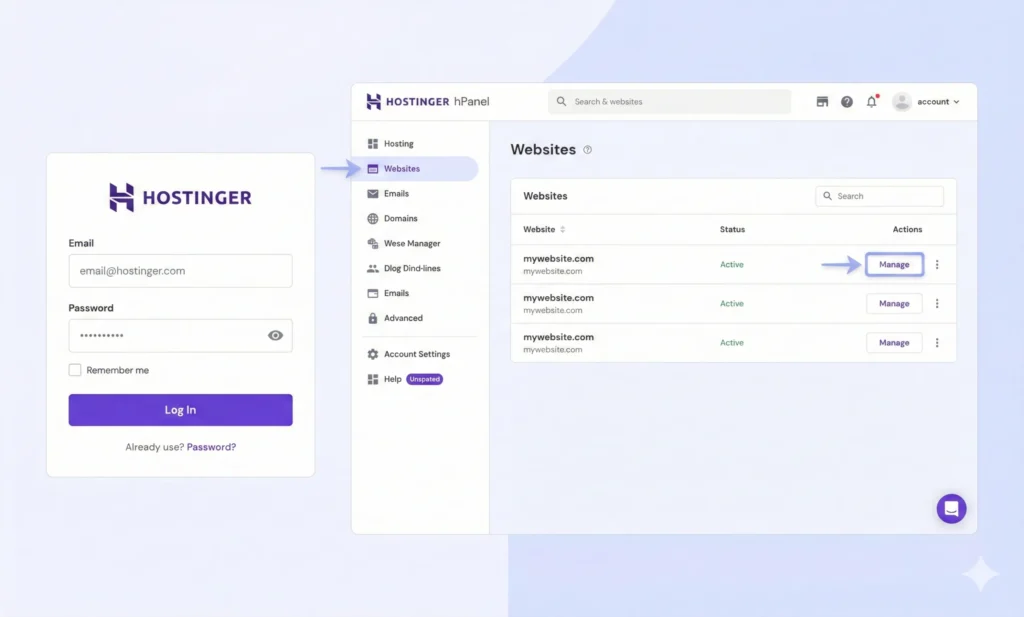
Step 1: Login to Your Hostinger Account
Go to Hostinger’s official website and log in to your account dashboard.
After logging in:
- Click on Websites
- Click Manage next to your domain
This will open the Hostinger hPanel.
Step 2: Open Auto Installer in hPanel
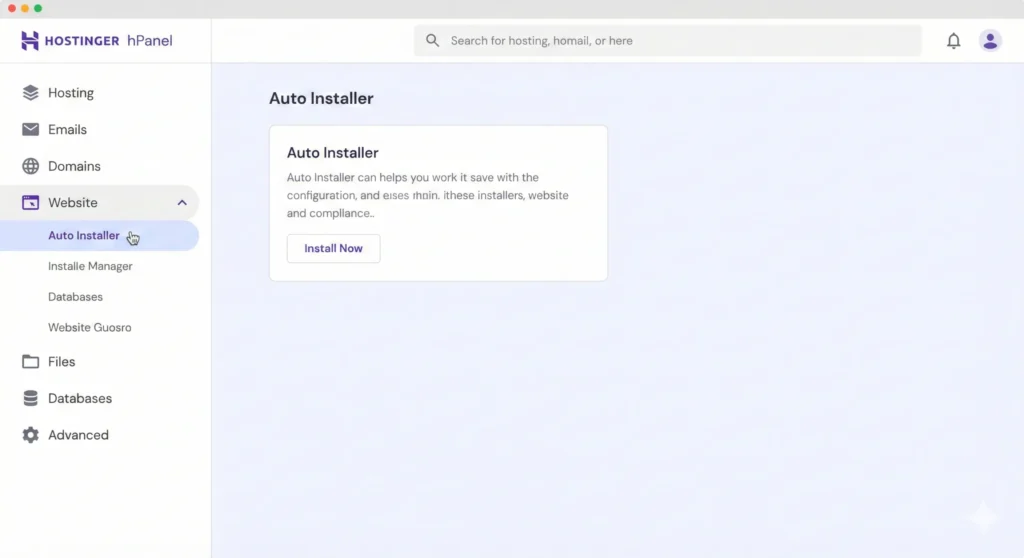
Inside hPanel:
- Scroll down to the “Website” section
- Click on Auto Installer
Hostinger provides multiple CMS options, including WordPress.
Step 3: Select WordPress
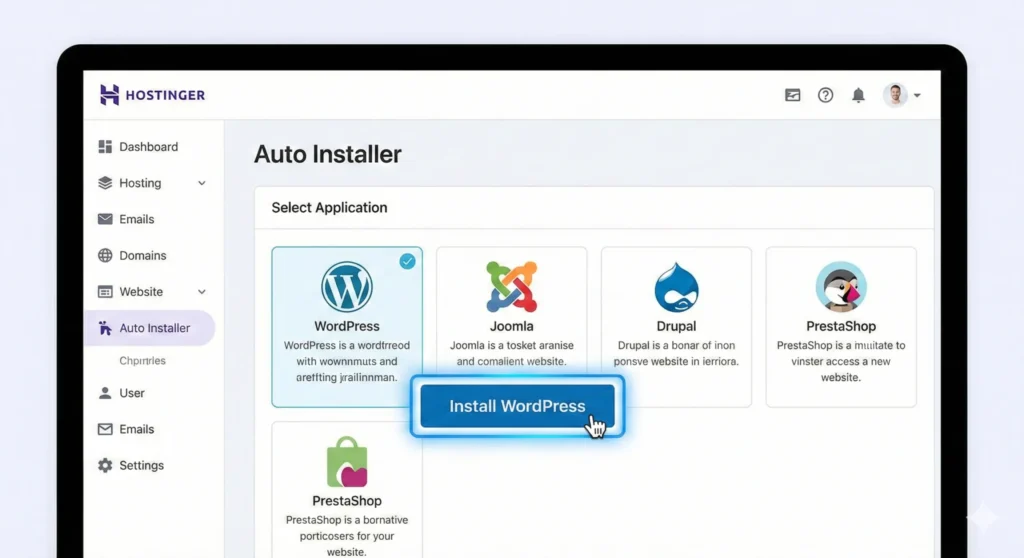
After clicking Auto Installer:
- Choose WordPress
- Click “Select”
You will now see the installation form.
Step 4: Enter Website Details
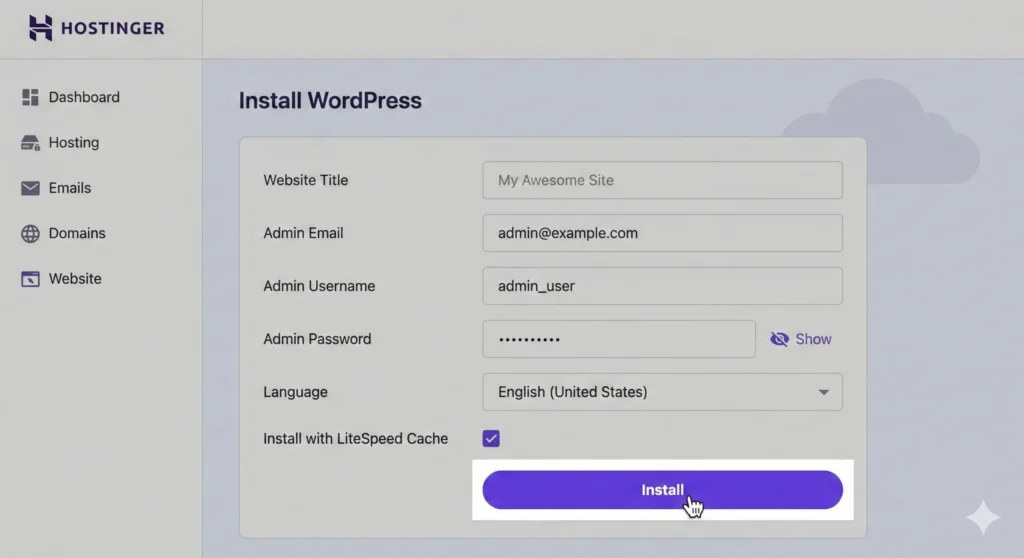
Now fill in the required details:
- Website title
- Admin email
- Username
- Password
- Choose WordPress version (latest recommended)
Click Install.
The installation process will take 1–2 minutes.
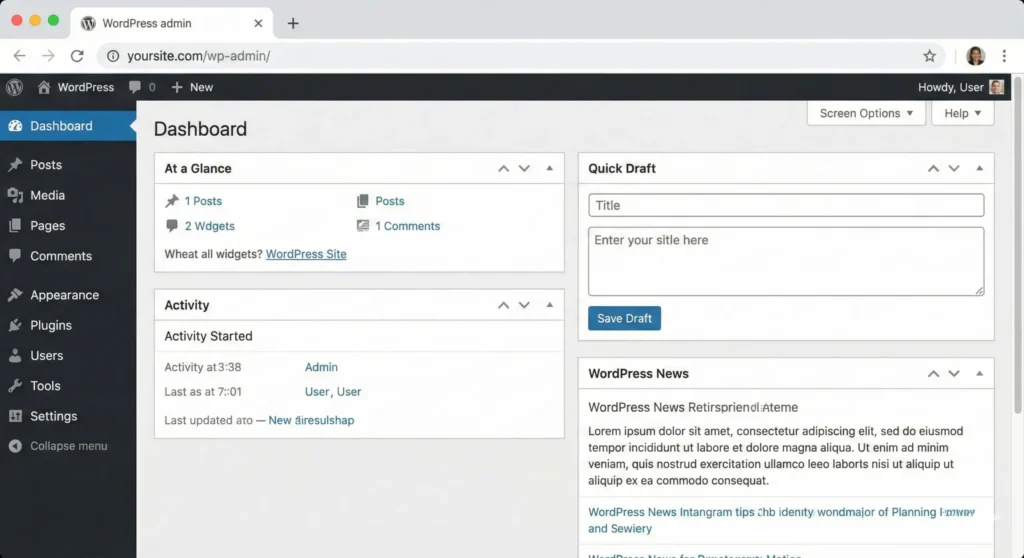
Step 5: Access WordPress Dashboard
After successful installation, you can log in via:
yourdomain.com/wp-admin
Enter your admin username and password.
You will now see the WordPress dashboard.
Congratulations 🎉 Your WordPress site is live.
Also Read: Hostinger Coupon Code 2026 – Get Verified Hostinger 20% Discount Code in India
Alternative Method: Manual Installation (Advanced Users)
If Auto Installer doesn’t work, you can manually install WordPress by:
- Downloading WordPress from wordpress.org (Download Now)
- Uploading files via File Manager
- Creating MySQL database
- Running installation wizard
However, beginners should use Auto Installer as it is faster and safer.
Hostinger Auto Installer vs Manual Installation (Comparison)
| Method | Difficulty | Time Required | Recommended For |
|---|---|---|---|
| Auto Installer | Easy | 5 Minutes | Beginners |
| Manual Install | Medium | 15–20 Minutes | Developers |
For most users, Auto Installer is the best option.
Need help on How to Install WordPress on Hostinger
Common Installation Problems & Fixes
WordPress Not Installing?
- Check domain pointing correctly
- Clear browser cache
- Ensure hosting plan is active
wp-admin Not Opening?
- Check .htaccess
- Re-save permalinks
- Disable plugins if needed
Pros & Cons of Installing WordPress on Hostinger
✅ Pros
- 1-click installation
- Beginner friendly hPanel
- Fast setup process
- No coding required
- Free SSL included
❌ Cons
- Manual installation slightly technical
- Renewal pricing higher than initial
Frequently Asked Questions
How long does it take to install WordPress on Hostinger?
It takes around 3–5 minutes using Auto Installer.
Is Hostinger good for WordPress beginners?
Yes, Hostinger is beginner-friendly and provides 1-click WordPress installation.
Do I need coding knowledge to install WordPress?
No, you can install WordPress without coding using Hostinger Auto Installer.
Why is wp-admin not working after installation?
It may be due to caching, SSL setup delay, or .htaccess issue.
Final Thoughts
Installing WordPress on Hostinger is quick and simple. With the Auto Installer feature, even beginners can launch a website within minutes.
If you are just starting your blogging or business journey, this is one of the easiest ways to get online.