
If you are wondering how to increase WordPress memory limit, the quickest fix is to add this line inside your wp-config.php file:
define('WP_MEMORY_LIMIT', '256M');

This increases your WordPress memory limit to 256MB and fixes the “Allowed memory size exhausted” error in most cases. If your website shows fatal memory errors, white screen, or plugins failing to load, this guide will help you fix it step by step.
What Is WordPress Memory Limit?
WordPress memory limit defines how much PHP memory your website can use.
Most hosting providers set default limits like:
- 40MB (older installs)
- 64MB (basic shared hosting)
But modern websites using Elementor, WooCommerce, or heavy plugins usually need at least 256M WordPress memory limit.
If memory is low, you may see:
- WordPress fatal error memory exhausted
- Allowed memory size exhausted fix needed
- Admin dashboard not loading
- Plugin activation failure
Why You Are Seeing “Allowed Memory Size Exhausted” Error
The error appears when your website tries to use more memory than allowed by your server.
Common reasons:
- Heavy page builder plugins
- Large WooCommerce store
- Too many active plugins
- Poorly coded theme
- Low hosting PHP memory limit
The solution is to increase WordPress memory limit safely.
Method 1: Increase Memory Limit in wp-config.php (Recommended)
This is the best and safest method to increase WordPress memory limit.
Step 1: Open File Manager
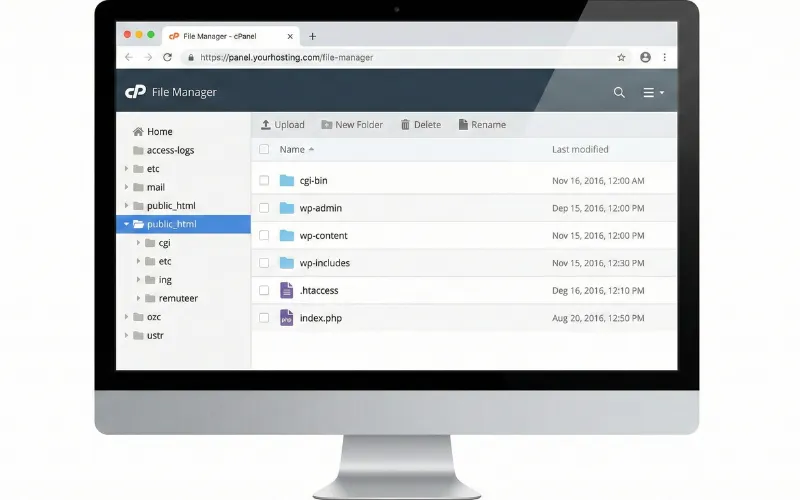
- Login to hosting
- Go to File Manager
- Open public_html
Step 2: Edit wp-config.php
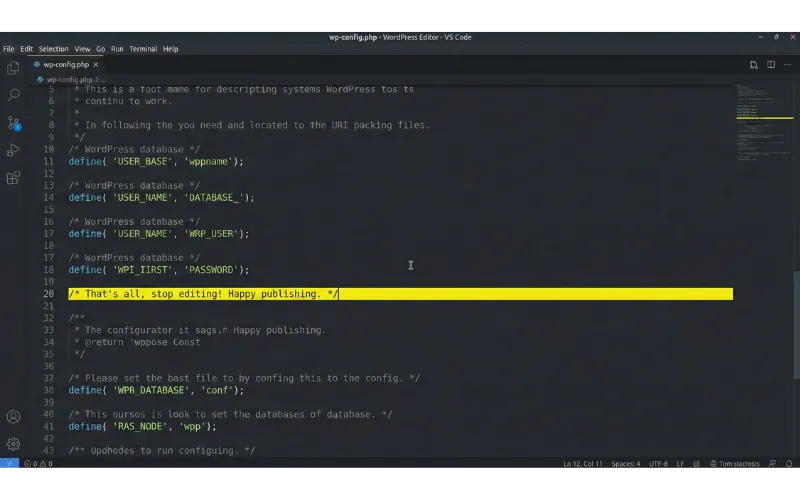
Find the file named:
wp-config.phpOpen it and scroll down until you see:
/* That's all, stop editing! Happy publishing. */
Step 3: Add This Code Above That Line
define('WP_MEMORY_LIMIT', '256M');
define('WP_MEMORY_LIMIT', '256M');Save the file.
This method increases PHP memory limit WordPress to 256M instantly.
In most cases, this solves how to fix memory exhausted error WordPress issues immediately.
Method 2: Increase PHP Memory Limit Using .htaccess
If the wp-config method does not work, try this.
Open your .htaccess file and add:
php_value memory_limit 256M
php_value memory_limit 256MSave the file.
⚠ This works only on Apache servers.
If you are using Nginx, this method will not work.
Method 3: Increase WordPress Memory Limit from Hosting Panel
Many beginners prefer this method.
If you are using Hostinger:
- Go to Advanced
- Click PHP Configuration
- Change Memory Limit to 256M
- Save changes
This increases WordPress memory limit without editing files.
WordPress Memory Limit Not Increasing? (Fix)
Sometimes users say WordPress memory limit not increasing even after adding code.
Reasons:
- Hosting provider restricts maximum memory
- Server-level PHP limit overrides wp-config
- Incorrect code placement
In this case:
- Contact hosting support
- Upgrade hosting plan
- Ask them to increase PHP memory manually
Recommended WordPress Memory Limit for 2026
Here’s a simple guide:
| Website Type | Recommended Memory |
|---|---|
| Basic Blog | 128M |
| Business Website | 256M |
| WooCommerce Store | 256M–512M |
| Heavy Page Builder Site | 512M |
For most users, WordPress memory limit 256M is perfect.
Common Problems Fixed by Increasing Memory Limit
Increasing WordPress memory limit helps fix:
- Allowed memory size exhausted fix
- WordPress white screen
- Elementor not loading
- Slow admin dashboard
- Plugin update errors
However, it does not fix poorly coded plugins.
wp-config vs .htaccess vs Hosting Panel (Comparison)
| Method | Difficulty | Recommended |
|---|---|---|
| wp-config.php | Easy | ✅ Best |
| .htaccess | Easy | ⚠ Apache only |
| Hosting Panel | Very Easy | ✅ Beginner Friendly |
For beginners asking how to increase WordPress memory limit, wp-config is the safest method.
Is Increasing WordPress Memory Limit Safe?
Yes, increasing WordPress memory limit to 256M is safe for most websites.
But avoid setting extremely high values like 1024M unless necessary.
Higher memory does not always mean better performance.
Quick Summary (Snippet Optimized)
To increase WordPress memory limit, open wp-config.php and add:
define('WP_MEMORY_LIMIT', '256M');This increases PHP memory and fixes the allowed memory size exhausted error instantly in most cases.
FAQ – How to Increase WordPress Memory Limit
What is the recommended WordPress memory limit?
256M is recommended for most WordPress websites.
How do I fix allowed memory size exhausted error?
Add define(‘WP_MEMORY_LIMIT’, ‘256M’); inside wp-config.php to fix the error.
Why is WordPress memory limit not increasing?
Your hosting provider may restrict maximum PHP memory.
Can shared hosting limit memory increase?
Yes, some shared hosting plans limit PHP memory regardless of wp-config settings.
Final Thoughts
If you are searching for how to increase WordPress memory limit, start with wp-config.php method.
In most cases, adding:
define('WP_MEMORY_LIMIT', '256M');solves the problem immediately.
If not, check hosting-level restrictions.
Increasing memory is one of the fastest ways to fix WordPress fatal memory exhausted errors.